

Why Phone Security Is Worth Your Attention
Your phone holds more personal information than almost any object you own — banking apps, emails, photos, medical details, passwords, and location history. Losing control of that information can cause real harm, from financial fraud to identity theft. The good news is that the most effective protections are built right into your phone and take only minutes to configure.
If you're newer to smartphones in general, our guide for first-time smartphone owners covers the basics of navigation, apps, and account setup — a useful foundation before diving into security settings.
Security doesn't require technical expertise. It requires a handful of deliberate choices, applied once and revisited occasionally. The steps below are organized to tackle the highest-impact protections first.
What you will need
What You'll Need Before You Start
No special equipment is needed for this walkthrough — just your phone and a few minutes. The tools below can strengthen your security further, though only the Settings app is strictly required to complete the core steps.
Your Phone's Settings App
The primary place to configure lock screen, permissions, updates, and privacy controls.
Password Manager App
Stores unique, complex passwords for all your accounts so you don't reuse weak ones.
Authenticator App
Generates time-based codes for two-factor authentication, reducing reliance on SMS codes.
Step-by-Step: Strengthening Your Phone's Security
Work through these steps in order. Each one builds on the last, and together they address the most common ways phones are compromised. Don't feel pressure to do everything at once — even completing the first two or three steps meaningfully improves your protection.
Set a Strong Lock Screen
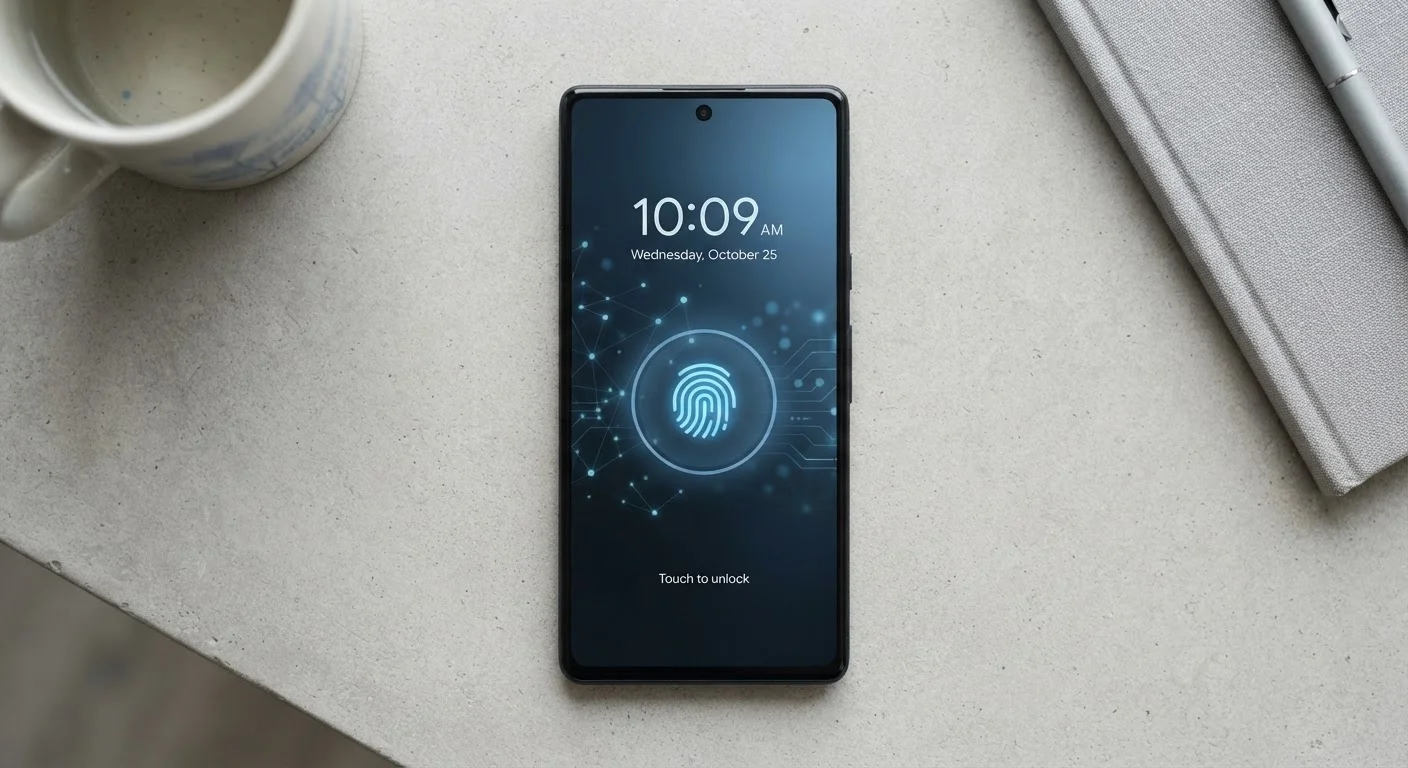
Open Settings and look for Security or Face ID & Passcode (the exact label differs by phone). Choose either a PIN of at least six digits or, better yet, a full alphanumeric password — a mix of letters, numbers, and symbols. Avoid obvious choices like birth years, "1234," or repeating digits.
Biometrics (fingerprint or face unlock) are convenient and generally secure for everyday use, but always pair them with a strong PIN as a backup, since biometrics can occasionally fail or be bypassed in certain circumstances.
Review and Trim App Permissions
Go to Settings > Privacy (iPhone) or Settings > Apps (Android) to see which apps have access to your location, microphone, camera, contacts, and more. For each permission, ask: does this app genuinely need this to work?
- Location: Set most apps to "While Using" rather than "Always." Very few apps need your location constantly.
- Microphone & Camera: Only messaging and video apps typically need these. Revoke access from apps where it seems unnecessary.
- Contacts: Be cautious about which apps can read your entire address book.
Enable Two-Factor Authentication on Key Accounts
Two-factor authentication (2FA) requires a second proof of identity — usually a code — in addition to your password when logging in. This means that even if someone obtains your password, they still can't access your account without that second factor.
Enable 2FA on your email, banking, and social media accounts first, as these are the most valuable targets. Authenticator apps generate codes directly on your device and are generally considered more secure than receiving codes via text message (SMS), which can be intercepted in some scenarios.
Keep Your Software Up to Date
On iPhone, go to Settings > General > Software Update. On Android, check Settings > System > System Update (exact path varies by manufacturer). Enable automatic updates if available, so security patches install in the background without requiring action from you.
Don't forget to update your apps too. App stores allow automatic app updates — enabling this ensures that security fixes in individual apps are applied promptly.
Audit What's on Your Lock Screen
Your lock screen notifications can reveal a surprising amount: text message previews, email subjects, banking alerts. Anyone who picks up your phone can read these without unlocking it.
Go to Settings > Notifications and for sensitive apps — banking, messaging, email — change the preview setting to "When Unlocked" or "Never." You'll still get the notification badge, but the content stays hidden until you authenticate.
Check Whether Your Phone Backs Up Securely
Cloud backups protect your data if your phone is lost or stolen — but they also mean a copy of your data exists elsewhere. Make sure your cloud backup account (iCloud or Google Account) uses a strong, unique password and has 2FA enabled. This is the account a thief would target after stealing your device.
If you're thinking ahead to eventually passing on or selling your phone, this checklist for handing off an old phone covers how to wipe your data properly before it leaves your hands.
Never Skip Software Updates
Security updates fix known vulnerabilities that attackers actively exploit. Delaying updates — even for a few weeks — leaves your device exposed to threats that manufacturers have already solved. Set your phone to update automatically overnight so you're never caught behind.
Staying Secure Over Time
Phone security isn't a one-time task. Make it a habit to glance at your app permissions every few months, particularly after installing new apps. Revisit your lock screen settings if your routine changes. And treat your cloud account credentials with the same care as your bank login — they're the master key to your backed-up data.
Use a Password Manager
Strong, unique passwords for every account are hard to remember on their own. A password manager app stores and autofills them securely, so you only need to remember one master password. Most modern phones integrate with password managers natively through their autofill settings.
If you're interested in extending these habits beyond your phone, securing your home Wi-Fi network is a natural next step. And for a broader look at what you're trusting your phone with day to day, the real trade-offs of depending on a smartphone offers a grounded perspective.
Public Wi-Fi Can Expose Your Data
Free Wi-Fi at airports, coffee shops, and hotels is convenient but often unencrypted, meaning others on the same network could potentially intercept unprotected traffic. Avoid logging into financial accounts or sending sensitive information over public networks. If you travel frequently, consider learning about VPNs (virtual private networks) as an additional safeguard — our home network security guide covers related concepts in plain language.
The content on this site is for informational purposes only and is not a substitute for professional advice. Always consult a qualified professional for guidance specific to your situation.