

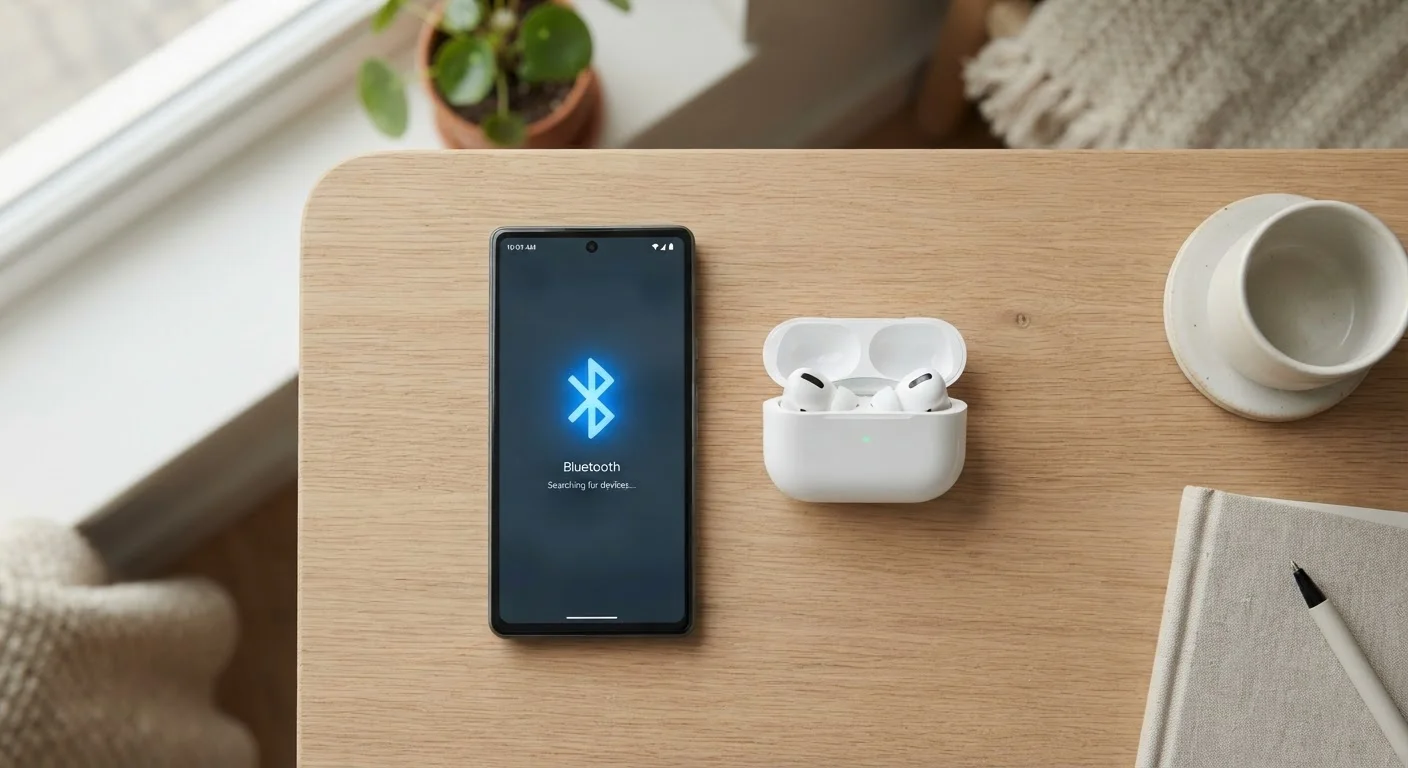
Why Bluetooth Connections Fail
Bluetooth is a short-range wireless standard that lets two devices talk to each other by exchanging a digital "handshake." When that handshake breaks down, the cause usually falls into one of four buckets: a power or visibility issue, a range or interference problem, a corrupted pairing record, or an outdated software driver. Working through those categories in order — from simplest to most complex — is the fastest path to a fix.
Before diving into the steps below, it helps to know that Bluetooth operates on the 2.4 GHz radio band, the same frequency used by Wi-Fi routers and microwave ovens. Physical obstacles like walls and metal shelving, as well as crowded wireless environments, can degrade the signal even when both devices appear to be on and connected.
Write Down What You've Already Tried
Before starting the steps, jot down any fixes you've already attempted. This prevents you from repeating the same action twice and gives a technician or support agent a clear starting point if you eventually need outside help. Even simple notes like 'restarted phone twice' save time.
If you have already tried the obvious fixes and still can't get things working, our broader tech troubleshooting checklist covers additional system-level checks worth running before contacting a manufacturer.
What You'll Need Before You Start
The process below requires no tools beyond the devices themselves. Make sure you have both the device you're connecting from (your phone, tablet, or computer) and the device you're connecting to (speaker, headphones, keyboard, etc.) within arm's reach before starting.
What you will need
Step-by-Step Diagnosis
Confirm Bluetooth is enabled on both devices
Open the Settings app on your phone or computer and navigate to the Bluetooth section. Verify the toggle is switched on. Then check the accessory: most speakers, headphones, and keyboards have a small LED indicator that blinks blue when Bluetooth is active. Consult the accessory's manual if you're unsure what the lights mean.
Move both devices closer together
Place both devices within six feet of each other and remove any large objects — metal furniture, walls, or other electronics — from the space between them. This rules out range and interference as the cause before you go any further.
Toggle Bluetooth off and back on
On your primary device, turn Bluetooth off, wait ten seconds, then turn it back on. This forces the radio to reset its connection list and can clear minor software glitches without requiring a full restart.
Restart both devices
A full power cycle clears temporary memory on both sides of the connection. Turn both devices completely off — not just to sleep — wait 30 seconds, then power them back on. This step resolves a surprisingly large number of cases that toggling Bluetooth alone does not.
Remove the old pairing record and re-pair from scratch
Corrupted pairing data is one of the most common causes of repeated connection failures. On your primary device, go to Settings > Bluetooth, find the accessory in the list of paired devices, and select Forget (or Unpair — the label varies by operating system). On the accessory itself, perform a factory reset to clear its own pairing memory (your manual will have instructions specific to your model). Then pair the two devices as if for the very first time.
Check for and install software updates
Out-of-date firmware (the software built into the accessory) or an outdated phone operating system can prevent a successful handshake. Check your phone's system update settings and install any available updates. For the accessory, visit the manufacturer's website or check their companion app for firmware updates specific to your model.
Test with a different device
Pair the accessory with a completely different phone, tablet, or computer. If it connects without issue, the problem is specific to your original primary device — likely a software or settings conflict. If it fails on the second device too, the accessory itself is the more likely culprit.
Work through each step in sequence. Stop when your connection is restored — you don't need to complete all steps if the problem resolves early.
Don't Skip Steps Out of Order
It's tempting to jump straight to a factory reset, but starting with simpler fixes saves time overall. Each step in this guide is designed to rule out one specific cause. Skipping ahead can leave the actual cause unidentified, making the problem harder to explain or fix later.
When the Steps Don't Fix It
If you've completed every step and the connection still fails, consider two less common causes. First, some older Bluetooth accessories are incompatible with newer operating system versions — the manufacturer's support page will list compatible OS versions. Second, the Bluetooth radio hardware itself can fail, particularly in devices that have been dropped or exposed to moisture. In either case, a qualified repair technician or the device manufacturer's support line is the appropriate next step.
For recurring problems that resolve temporarily but keep returning, note the pattern: Does it always fail near a specific location? After a certain app opens? After a software update? Patterns like these point toward interference or a software conflict and give a technician much more to work with.
Persistent Failures May Signal a Hardware Problem
If the accessory fails to connect with multiple different devices after a factory reset and firmware update, the Bluetooth radio inside the accessory may be damaged. Do not attempt to open or repair wireless electronics yourself — doing so can void warranties and create safety hazards. Contact the manufacturer or a certified repair service for evaluation.
The content on this site is for informational purposes only and is not a substitute for professional advice. Always consult a qualified professional for guidance specific to your situation.