

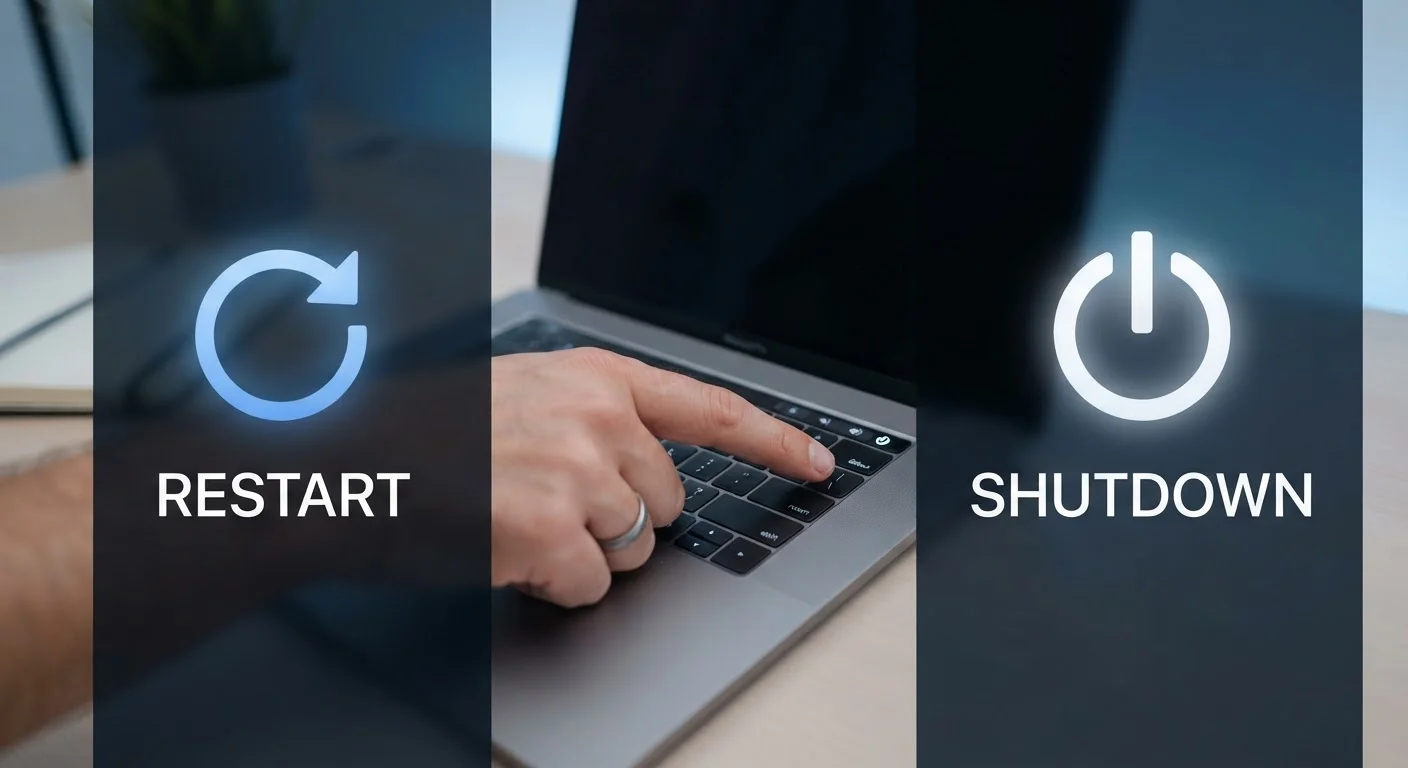
Option A
Restart
The active reset that clears memory and reloads the system.
Best for: Fixing sluggish performance, app glitches, and minor software errors without losing your session.
Option B
Shutdown
The full power-off that halts all activity until you turn the device back on.
Best for: Giving your device a complete rest, saving power over longer periods, or preparing it for storage or travel.
What Actually Happens When You Restart
When you choose Restart, your device goes through a deliberate sequence: it closes every running program, clears what's stored in RAM, and then powers back up and reloads the operating system from scratch. Think of RAM as a whiteboard — restarting erases everything written on it and starts fresh.
This is why a restart so reliably fixes common problems. Glitchy apps, sluggish response times, and minor software errors often happen because the whiteboard gets cluttered with outdated or conflicting information. Wiping it clean forces the system to rebuild everything correctly.
For more help matching a specific symptom to the right fix, see our guide to frozen screens and crashes.
| Criterion | Restart | Shutdown |
|---|---|---|
| Clears RAM | Yes — fully | Varies (not always on Windows) |
| Reloads the operating system | Yes | Only on next power-on |
| Power consumption after | Normal — device stays on | Zero — device is off |
| Best for fixing glitches | Yes | Not reliably |
| Best for extended non-use | No | Yes |
| Applies pending updates | Usually yes | Depends on the platform |
What Actually Happens When You Shut Down
A Shutdown powers the device completely off — no background apps running, no network activity, no drain on the battery. On the surface that sounds like the more thorough option. But there's an important catch on many modern Windows PCs.
Windows uses a feature called Fast Startup (also called hybrid shutdown), which saves a snapshot of the operating system to your storage drive before powering off. When you turn the PC back on, it loads that snapshot instead of doing a full reload. This makes boot times faster — but it means a shutdown on those machines does not fully clear the system state the way a restart does.
Fast Startup on Windows PCs
Windows 10 and 11 enable Fast Startup by default on most systems. Because it saves a memory snapshot at shutdown, choosing 'Shut down' on these machines may not fully reset the system the way a restart does. If you're troubleshooting a Windows PC, always use Restart rather than Shutdown to ensure a clean reload. You can disable Fast Startup in the Power Options settings if you prefer true cold boots every time.
iPhones, Android phones, and Macs behave differently — their shutdowns are generally true power-offs. But the key principle holds: if you want to clear out software clutter, restart is usually the more reliable choice across all platforms.
When to Choose Each One
Use a restart when:
- An app is crashing, freezing, or behaving oddly
- The device feels slower than usual
- You've just installed a software or system update
- You haven't restarted in several days
Use a shutdown when:
- You won't use the device for an extended period — overnight or longer
- You're travelling and want to conserve battery
- The device feels warm and needs to fully cool down
- You're handing it off for repair or storage
~30%
Performance improvement from a weekly restart
Device performance studies generally show that clearing accumulated RAM and background processes can noticeably speed up response times on phones and computers that run continuously.
7+ days
Typical gap before users restart a phone
Many users go a week or more without restarting their smartphones, according to general usage pattern data from mobile OS developers.
One useful habit: restart your phone or computer at least once a week even when nothing feels wrong. It keeps performance steady and reduces the chance of background processes quietly accumulating. This is one of the small routines covered in our piece on habits that quietly damage your devices.
The content on this site is for informational purposes only and is not a substitute for professional advice. Always consult a qualified professional for guidance specific to your situation.