

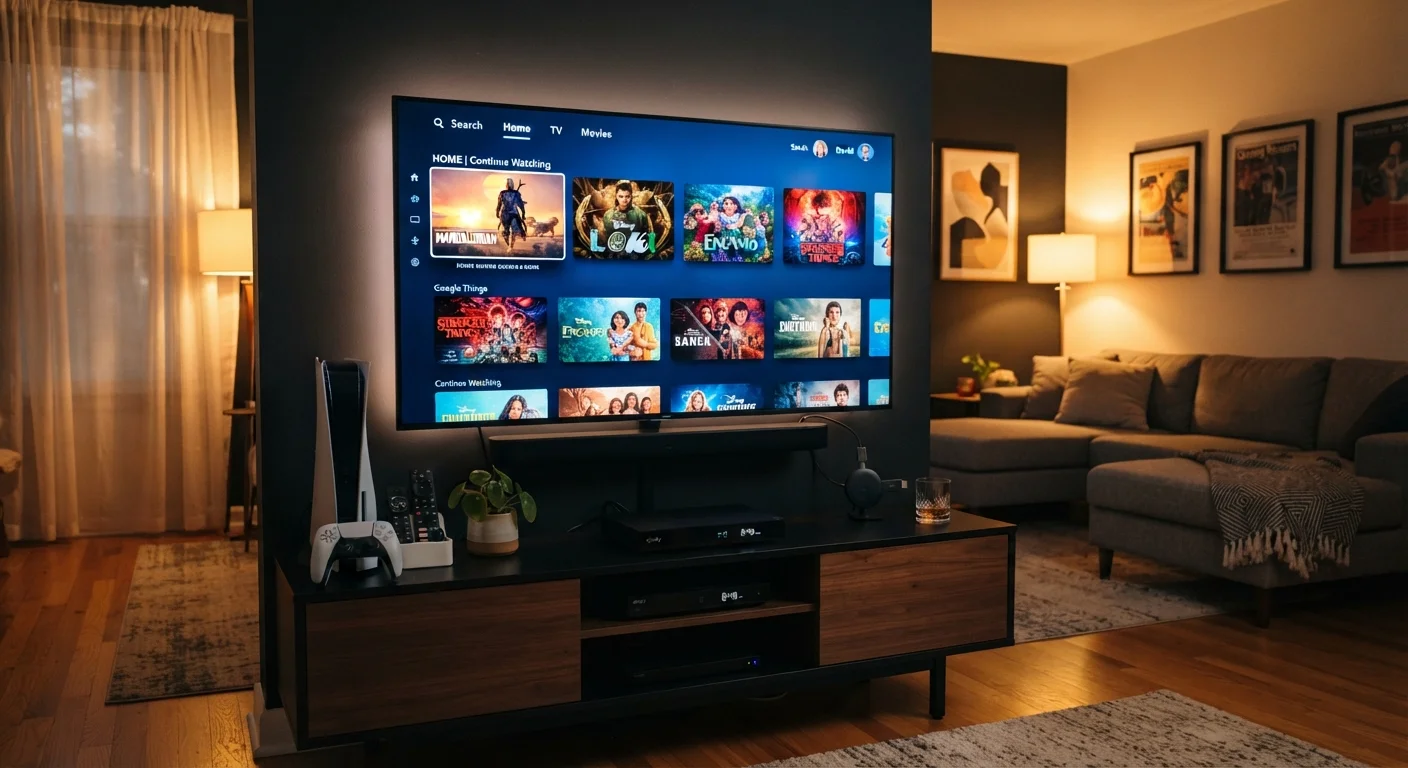
Streaming Services and Smart TV Apps
Most TVs sold today are smart TVs — meaning they have a built-in computer that connects to your home Wi-Fi and runs apps directly. You can open a streaming service the same way you'd open an app on a phone: just press a button on the remote or navigate a home screen menu.
Smart TV platforms vary by manufacturer. Some use their own systems, while others run widely adopted platforms. The key things to check are whether your preferred apps are available, how smoothly the interface responds, and how long the TV manufacturer will continue pushing software updates. Older smart TVs can stop receiving app updates years before the TV panel itself fails.
For a deeper look at how display technology affects what you actually see, the panel technology guide covers how OLED, QLED, and LED differ in real viewing conditions.
If your smart TV feels sluggish, plug in an external streaming device rather than replacing the TV. The panel may have years of life left — it's the software that's aged.
Smart TV operating systems often lose manufacturer support within three to five years, while the display hardware itself routinely lasts a decade or more.
Before buying an antenna, use a free broadcast tower locator tool (available from the FCC and independent sites) to see which channels are realistically receivable at your address and in which direction to aim the antenna.
Antenna performance is highly location-specific. Knowing tower directions in advance prevents wasted purchases and setup frustration.
External Streaming Devices
If your TV's built-in software is sluggish, limited, or no longer updated, an external streaming device plugs into an HDMI port and takes over. These small sticks or boxes run their own operating system and often receive software support independently of the TV itself.
Common device categories include streaming sticks (compact, powered by the TV's USB port or a wall adapter) and streaming boxes (slightly larger, with more processing power and local storage). Both connect to Wi-Fi and access the same streaming apps you'd find on a smart TV.
25 Mbps
Minimum speed for stable 4K streaming
Most major streaming platforms recommend at least 25 Mbps of download speed for consistent 4K Ultra HD playback on a single device.
~70%
US households with at least one streaming subscription
Industry surveys conducted in recent years consistently show streaming adoption reaching roughly seven in ten American households.
External devices are especially useful if you own an older TV that has become slow or lost app support. They give that TV a new interface without requiring a full replacement.
Cable, Satellite, and Live TV
Cable TV delivers video through a coaxial cable (the thick round wire) that runs into your home from a provider's infrastructure. A set-top box decodes the signal and passes it to your TV via HDMI. Satellite TV works similarly but pulls the signal from a dish mounted outside your home rather than underground wires.
Both options typically include live sports, news, and local channels as part of a package. The trade-off is a monthly subscription cost and, in satellite's case, potential signal interruption during heavy weather.
A middle-ground option is virtual MVPD (Multichannel Video Programming Distributor) services — essentially live TV delivered over the internet, no dish or coaxial cable required. You access them through an app on a smart TV or streaming device. Channel lineups resemble traditional cable, but you stream over your broadband connection instead.
Streaming Live TV Needs a Solid Connection
Virtual MVPD services depend entirely on your home internet connection. A slow or unstable connection will cause buffering, lower picture quality, or dropped feeds — especially during high-traffic events like live sports. Before subscribing, confirm your internet plan can comfortably handle the service's recommended speed, which is typically at least 25 Mbps for HD streams.
Over-the-Air Antenna
An over-the-air (OTA) antenna picks up broadcast signals transmitted by local TV stations — the same networks that cable companies also carry, but received for free. You connect the antenna to your TV's coaxial input (labeled ANT or RF IN), run a channel scan, and local channels appear.
Signal quality depends on distance from broadcast towers, terrain, and obstacles like buildings or trees. Indoor antennas work well in many urban and suburban areas. Homes farther from towers may need an amplified or outdoor-mounted antenna for reliable reception.
The video quality from an OTA signal is often surprisingly sharp — major networks broadcast in full 1080i or 720p high definition. To understand what those numbers mean for your viewing experience, the TV resolution explainer breaks it down clearly.
Run a Channel Scan After Setup
After connecting an antenna, always run a full channel scan from your TV's settings menu. Stations occasionally change frequencies, and a fresh scan ensures you're receiving everything available in your area. Rescan any time you reposition the antenna or move to a new address.
Gaming Consoles as Media Players
Modern gaming consoles aren't just for games — they function as full media centers. Most current-generation consoles support the major streaming apps and can play physical discs as well. Because consoles receive regular system updates and use powerful processors, the streaming experience is typically smooth and current.
If you already own a gaming console, it may be the only additional device you need to access all your streaming subscriptions. Check the console's app store for your preferred services before assuming you need a separate streaming device.
Audio is another dimension worth considering. The home theater audio guide explains how consoles and streaming devices pass audio signals to soundbars or AV receivers, which matters if you're aiming for surround sound.
Screen Mirroring and Casting from a Phone or Laptop
Screen mirroring lets you display your phone, tablet, or laptop screen directly on your TV. Casting is a related but distinct method — instead of copying your screen, you send a video URL to the TV, which then streams it independently while your phone is free for other tasks.
Common standards include Miracast (built into many Android phones and Windows computers), Apple AirPlay (for Apple devices to compatible TVs), and Google Cast (available in many smart TVs and streaming devices). You can also mirror using a physical cable — an HDMI cable connected from your laptop, or an adapter that converts your phone's USB-C or Lightning port to HDMI.
Wired connections are more reliable and introduce no compression, making them useful for presentations or when Wi-Fi is crowded. Wireless mirroring is more convenient but can show occasional lag or quality fluctuations depending on your network.
Before connecting multiple devices to your home network, it's worth reading what to know about smart devices on a shared network — network security and privacy considerations apply here too.
Physical Media: Blu-ray, DVD, and Beyond
Blu-ray discs store video at higher data rates than most streaming services deliver, which means more visual detail — particularly during fast motion or dark scenes. 4K Ultra HD Blu-ray takes this further, offering the highest quality home video format currently available. A compatible player connects via HDMI, and setup is straightforward.
Standard DVDs remain playable on Blu-ray players and are still common for older catalog titles. The picture quality is noticeably lower than Blu-ray or modern streaming, but the format works on virtually any player.
Physical media has one clear advantage over all streaming options: it doesn't depend on an internet connection, and the content doesn't disappear from your library if a licensing deal changes. That said, building and storing a disc collection requires more physical space and upfront cost per title than a streaming subscription.
Whichever source you use to get content onto your screen, what you actually see depends heavily on the display. The TV myths article addresses common misunderstandings about picture quality that can affect how you set up and evaluate any of these input methods.
The content on this site is for informational purposes only and is not a substitute for professional advice. Always consult a qualified professional for guidance specific to your situation.