

How Mobile Data Actually Works
Think of mobile data as a pipe between your phone and the internet. When you tap a link, your phone sends a request through your carrier's cell tower, which connects to the broader internet, retrieves the information, and sends it back — all in fractions of a second. That back-and-forth exchange is measured in megabytes (MB) and gigabytes (GB).
Your monthly plan gives you a fixed-size bucket of data. Every webpage you load, every video you watch, every photo you upload chips away at that bucket. When it empties, most carriers slow your speeds dramatically rather than disconnecting you — a state often called throttling.
Understanding data is closely tied to how you use your phone overall. For a broader look at how smartphones shape daily life, see the real trade-offs of using a smartphone for everything.
~700 MB
Data used per hour of HD video streaming
Streaming services typically use 700 MB–3 GB per hour depending on video quality settings selected.
~1 MB
Data used loading a typical webpage
Page sizes vary widely, but the average modern web page transfers roughly 2 MB of data including images and scripts.
~60 MB
Data used per hour of audio streaming
Standard-quality audio streaming consumes approximately 40–80 MB per hour depending on the app and quality setting.
The Hidden Reasons Your Data Disappears
Most people assume they run out of data because of obvious activity — watching YouTube or scrolling social media. Those do use significant amounts. But the less visible culprits are often just as costly.
Background App Refresh
Many apps update their content automatically in the background, even when you haven't opened them. Your email app checks for new messages. Your news app refreshes its feed. Your social apps preload photos and videos. All of this happens silently and constantly over cellular.
Auto-Playing Video
Social platforms like Facebook, Instagram, and TikTok automatically play videos as you scroll. A single minute of auto-playing video at standard definition uses roughly 10–15 MB. Scroll for 30 minutes and that adds up fast.
App and System Updates
If your phone is set to download app updates over cellular (rather than Wi-Fi only), a single large update can consume hundreds of megabytes in one go. System software updates can exceed 1 GB.
Cloud Backup and Syncing
Photo backup services and cloud storage apps often sync over any available connection by default. Uploading a day's worth of photos over cellular can eat through your allowance before you notice.
Check Your Per-App Data Usage Now
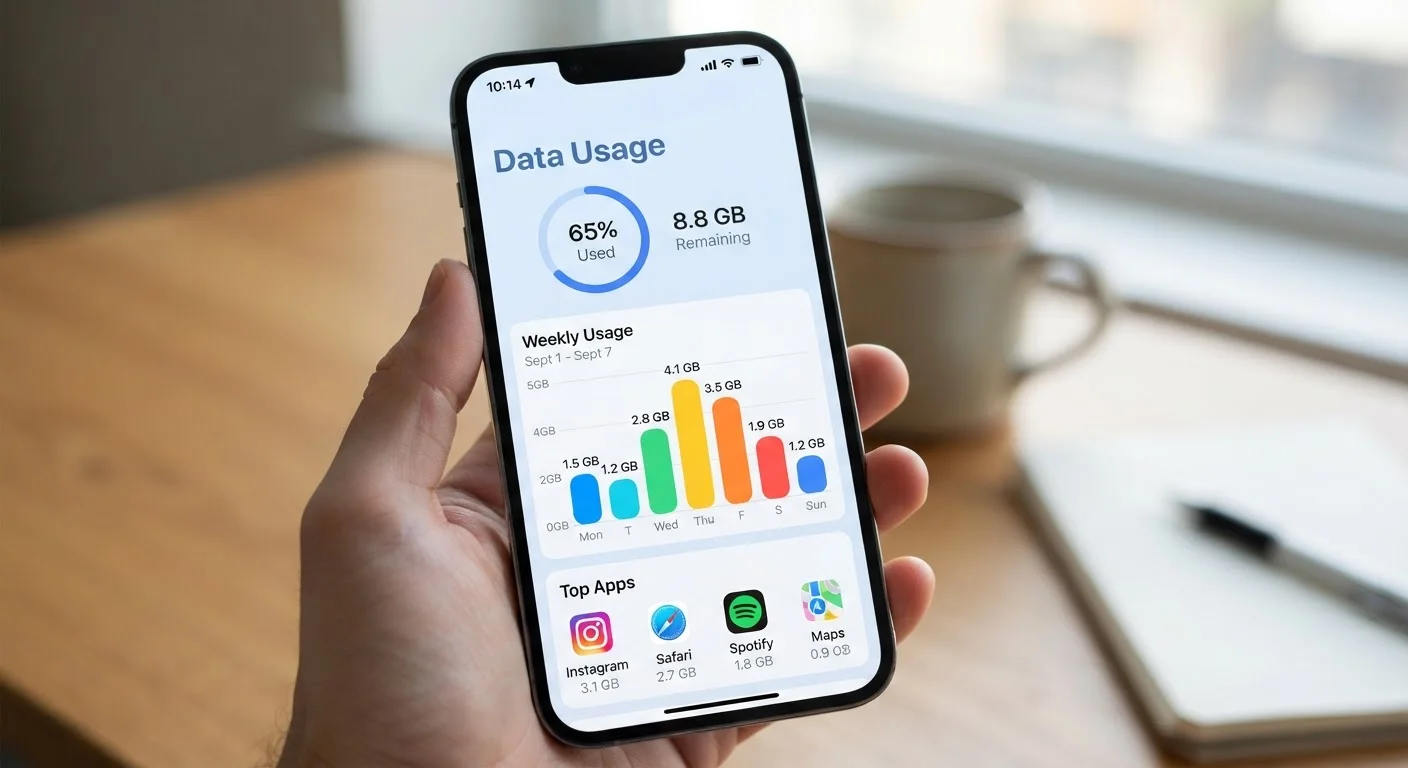
Before changing any settings, find out which apps are actually draining your data. On iPhone, go to Settings > Cellular. On Android, go to Settings > Network & Internet > Data Usage. Sort by consumption and you'll likely find one or two apps responsible for most of your usage — that's where to focus first.
Practical Ways to Make Your Data Go Further
You don't need a bigger plan — you need smarter habits. A few targeted changes can significantly reduce your monthly data consumption.
- Use Wi-Fi whenever possible. Enable Wi-Fi at home, at work, and at trusted locations. Your phone will prefer Wi-Fi over cellular automatically when it's available.
- Restrict background data. On both iPhone and Android, you can prevent individual apps from using data in the background. Go to your phone's settings and look for "Background App Refresh" (iPhone) or "Background Data" (Android).
- Set updates to Wi-Fi only. In your app store settings, turn off automatic downloads over cellular. Updates will wait until you're on Wi-Fi.
- Lower streaming quality. Most streaming apps let you choose video or audio quality. Dropping from HD to standard definition can cut video data use by more than half.
- Monitor usage regularly. Check your carrier's app or your phone's built-in data tracker weekly, not just when you get a low-data warning.
Managing data shares some overlap with managing what else your phone consumes — if you're also dealing with a full device, this guide to phone storage explains where space goes and how to reclaim it.
If you travel frequently, understanding how mobile data works becomes even more important. Check official carrier and roaming policies before you go, and visit travel tips for broader advice on staying connected on the road.
Frequently Asked Questions
Any internet activity your phone performs over a cellular connection counts — loading websites, streaming music or video, downloading app updates, sending photos, and even automatic background syncing. Activity over Wi-Fi does not count against your mobile data plan.
Video streaming is by far the biggest culprit, consuming hundreds of megabytes per hour even at standard quality. Background app refresh — where apps silently update content while you're not using them — also drains data without any visible action on your part.
Traditional SMS texts and standard phone calls use separate voice and messaging channels, not your data allowance. However, messages sent through apps like iMessage over cellular, WhatsApp calls, or FaceTime do count against your data.
On iPhone, go to Settings > Cellular and scroll down to see per-app usage. On Android, go to Settings > Network & Internet > Data Usage. Both show a breakdown so you can identify and limit the biggest consumers.
Yes. When Wi-Fi is off, your phone routes all internet activity through cellular. Keeping Wi-Fi enabled at home and in trusted locations is one of the easiest ways to preserve your monthly data allowance.
Most carriers don't cut off service entirely — instead, they throttle your connection speed to a much slower rate (sometimes as low as 128 Kbps) for the rest of the billing cycle. Some plans charge overage fees instead of throttling, so check your specific plan details.
The content on this site is for informational purposes only and is not a substitute for professional advice. Always consult a qualified professional for guidance specific to your situation.