

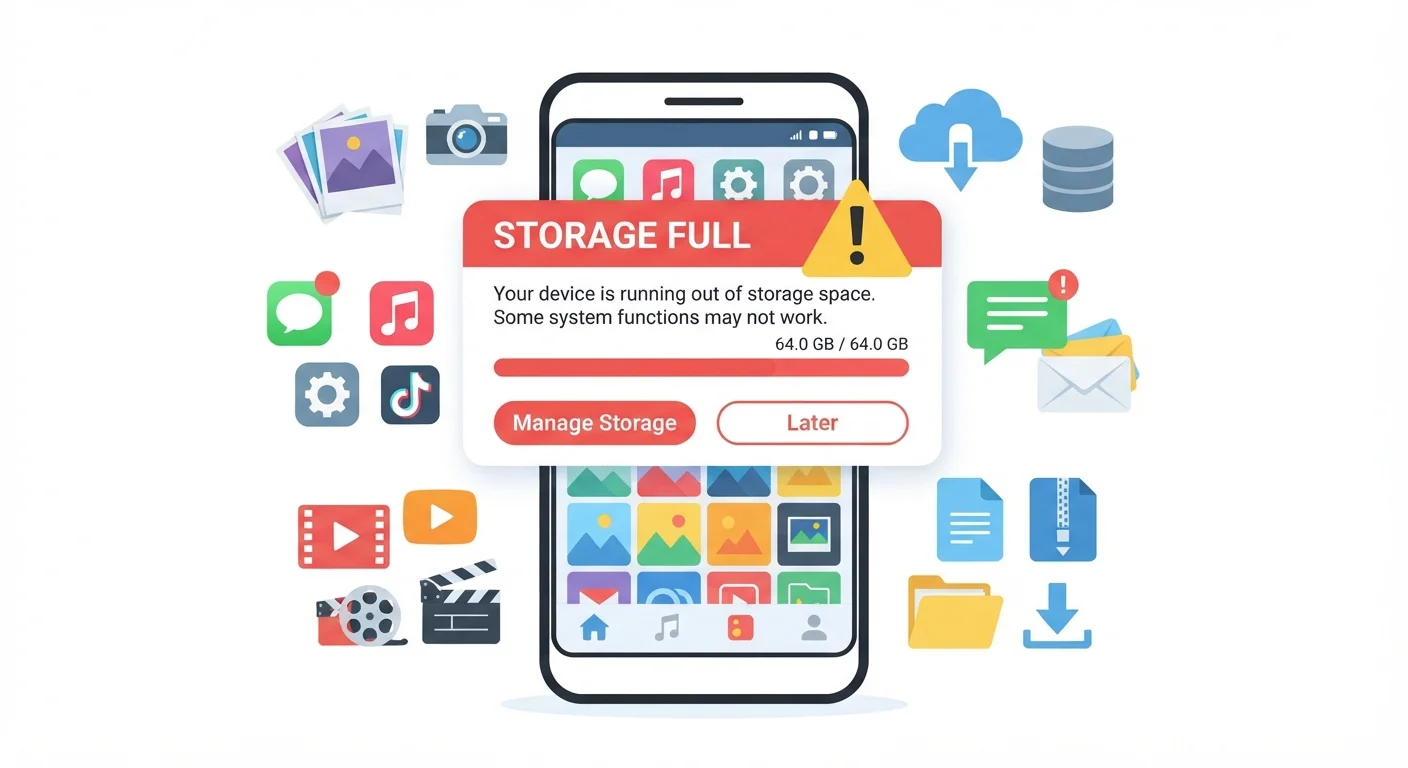
The Usual Suspects: What's Actually Eating Your Space
If your phone is crying out for space but your app list looks thin, you're not imagining things. Storage disappears in ways that aren't obvious from the home screen. Here's where it actually goes:
- Photos and videos: A single minute of 4K video can consume 400 MB or more. If your camera is set to shoot in high resolution — which is the default on most newer phones — your gallery is likely the single largest drain on your storage.
- Messaging app media: Every photo, video, voice note, and GIF sent to you through apps like iMessage, WhatsApp, or similar services is automatically saved to your device unless you change the settings. Group chats are especially aggressive at accumulating files.
- App cache: Apps quietly store temporary data to speed up loading — social media feeds, map tiles, streamed music files. This cache grows invisibly over months and can reach several gigabytes.
- Downloaded content: Offline playlists, downloaded podcast episodes, and saved maps all count toward your storage total, even if you've forgotten they're there.
400+ MB
Storage used per minute of 4K video
Recording in 4K at 60fps is common on modern smartphones and is one of the fastest ways to fill available storage.
10–20 GB
Typical space used by OS and pre-installed apps
The operating system and manufacturer software claim a significant share of advertised storage before any user data is saved.
~80%
Capacity threshold where slowdowns may begin
Phones often begin to show performance issues when storage is near capacity, as they need free space to write temporary system files.
Understanding these categories is the first step toward taking back control of your device. For a broader look at how smartphone habits affect daily use, see the real trade-offs of using a smartphone for everything.
The Hidden Slice: System Software and Pre-Installed Apps
Here's something that surprises a lot of people: the storage number printed on the box — 128 GB, 256 GB, and so on — is never the amount of space you actually get to use.
Your phone's operating system (iOS or Android) and the software that runs the core features of your phone occupy a fixed portion of that total. Add in any apps that came pre-installed by the manufacturer or carrier, and it's common to lose 10–20 GB before you've saved a single photo.
Advertised Storage vs. Usable Storage
Storage capacity is always listed as the raw total built into the device. Your actual usable space will be lower — sometimes noticeably so — because the operating system and pre-installed software are already using a portion of it. This is standard across all phone manufacturers and operating systems, not a defect.
This is worth keeping in mind when choosing a device. A phone advertised with 64 GB of storage may leave you with roughly 45–50 GB of usable space right out of the box. System updates can also gradually increase the space the operating system uses over time.
For more on maintaining your phone's performance over time, the guide on keeping your smartphone running well over the long haul covers practical habits worth building early.
How to Reclaim Space Without Losing What Matters
You don't need a tech background to recover meaningful storage. These steps work on most phones and address the highest-impact areas first:
- Back up and offload photos: Use a cloud photo service to back up your library, then delete local copies of photos and videos you don't need instant access to. This alone can free gigabytes in minutes.
- Clear app caches: On Android, go to Settings > Storage > Apps, select an app, and tap "Clear Cache." On iPhone, the equivalent is often to offload and reinstall the app. Either way, the app continues to work — it just rebuilds its temporary files over time.
- Review messaging app settings: Most messaging apps have an option to stop auto-downloading media, or to delete media older than a set date. Turning off auto-download prevents the problem from recurring.
- Delete downloaded offline content: Check your music, podcast, and map apps for downloaded files you no longer need. These are easy to forget and easy to re-download when needed.
- Remove unused apps: Even apps you never open occupy space, and some run background processes that generate additional data over time.
Check Your Storage Breakdown First
Before deleting anything, visit your phone's storage settings to see a category-by-category breakdown. On iPhone, go to Settings > General > iPhone Storage. On Android, look under Settings > Storage. Identifying the largest category first means you tackle the problem where it actually lives, not where you assume it does.
Managing what your apps can access in the background also helps with performance more broadly. Our guide on app permissions and what you're agreeing to explains how to review those settings confidently.
Preventing Storage Creep Going Forward
Freeing up space is satisfying, but keeping it clear requires a few simple habits. The storage problem tends to be gradual — files accumulate quietly over weeks and months until a warning appears at the worst possible moment.
Consider enabling automatic cloud backup for your camera roll so photos are safely stored off-device as you take them. Review your storage breakdown every few months — both iOS and Android make this easy in their settings menus — to catch any category that's grown unexpectedly large.
It's also worth debunking one common misconception: closing apps from the recent-apps screen does not free up storage. That's a separate resource (RAM). Storage is only reclaimed when files are actually deleted. For more on common phone myths like this one, see smartphone myths that just won't die.
A full phone doesn't have to mean a slow or frustrating one. Once you know where the space is going, the fixes are usually straightforward — no technician required.
Frequently Asked Questions
Apps themselves are often not the main culprit. Photos, videos, and media attachments in messaging apps tend to take up far more space. Your phone's operating system and system data also consume a significant portion of storage that isn't visible in your app list.
It depends on the app. Large games can occupy several gigabytes, so removing them makes a noticeable difference. Smaller utility apps may free up very little. Clearing an app's cached data — rather than deleting the app entirely — can also reclaim meaningful space.
Cached data is temporary information an app saves to load faster next time — think saved images from social media feeds or recently viewed web pages. Deleting it is generally safe; the app will simply rebuild the cache as you use it again.
On most Android phones, go to Settings > Storage to see a breakdown by category. On iPhone, navigate to Settings > General > iPhone Storage for a similar overview, including app-by-app usage.
Most modern flagship smartphones do not support expandable storage. Some Android phones still include a microSD card slot, which allows you to add storage for media. The best universal workaround is using cloud storage services to offload photos and files.
Often, yes. When storage is nearly full, the phone has less room to write temporary files it needs to operate, which can cause noticeable slowdowns. Freeing up space — especially getting below 80–90% capacity — can improve performance.
The content on this site is for informational purposes only and is not a substitute for professional advice. Always consult a qualified professional for guidance specific to your situation.