

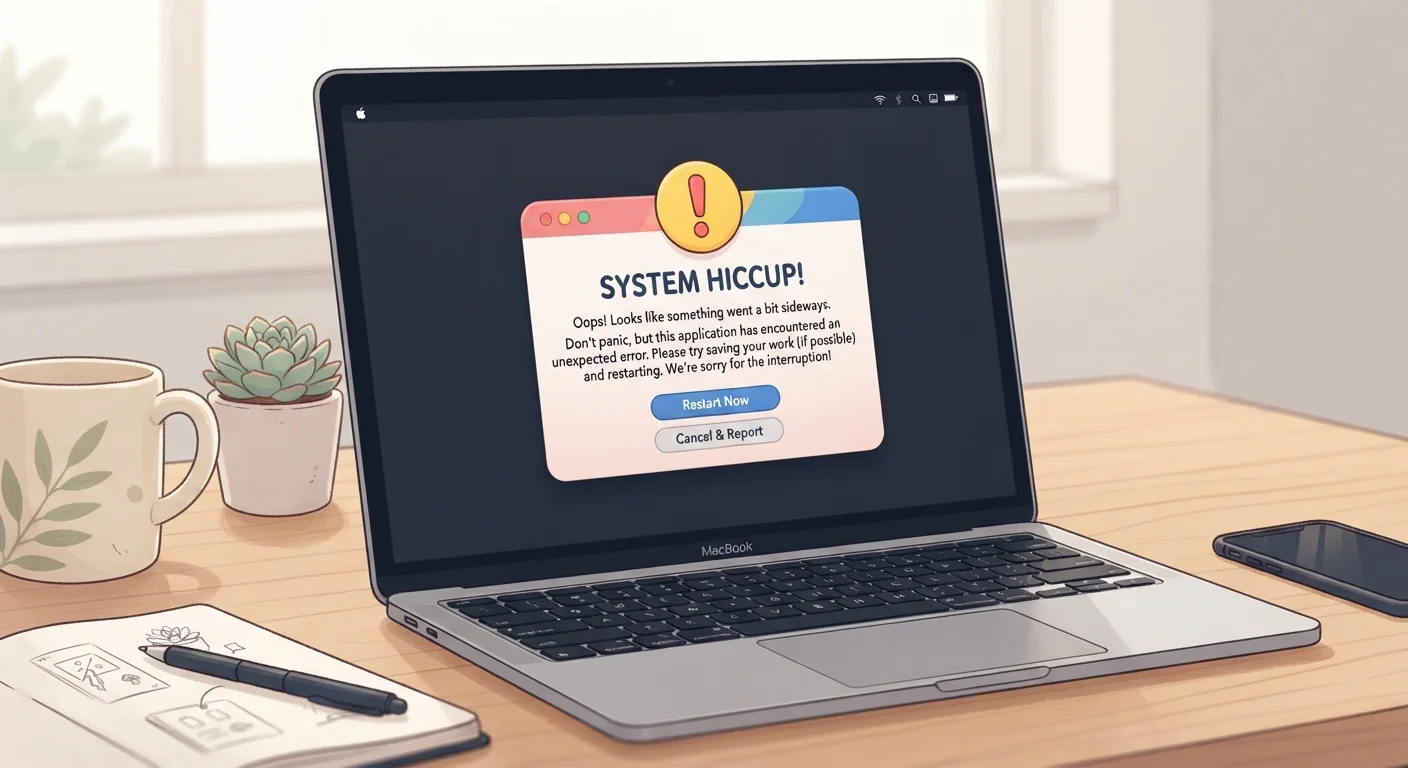
Why Error Messages Exist (and What They're Actually Saying)
Error messages are your device's way of reporting a specific problem it cannot silently fix on its own. They are not random — every message follows a structure: a type label (Warning, Error, Critical), a description of what failed, and often an error code that uniquely identifies the fault category.
The frustration most people feel comes from the language, not the message itself. Software is written by engineers, and error text is often drafted for internal logs rather than everyday users. Once you understand the basic anatomy, the message becomes a useful clue rather than a wall of noise.
A helpful analogy: error messages work similarly to dashboard warning lights in a car. Each symbol maps to a specific system. Knowing the category narrows down the fix dramatically.
Always Copy the Error Text First
Before clicking 'OK' or 'Close' on any error dialog, take a moment to copy the full message — or snap a photo of your screen. The exact wording and any alphanumeric code are the fastest path to a solution. Paraphrasing an error when searching online often returns irrelevant results.
A Field Guide to Common Error Types
Most errors you'll encounter fall into a handful of categories. Here's how to recognize each one:
| Most common cause of "Not Responding" | Program is processing a task and the UI thread is temporarily blocked |
| What HTTP 404 means | The page or file was not found at that address |
| What HTTP 503 means | The server is temporarily unavailable, usually due to overload or maintenance |
| Blue Screen of Death (BSOD) trigger | Hardware fault, driver failure, or critical system file corruption |
| First recommended step for any error | Copy the exact error text or code before dismissing the dialog |
| "Access Denied" typically signals | Insufficient user permissions for that file, folder, or action |
Permission and Access Errors
Messages like "Access Denied," "You don't have permission," or "Administrator rights required" mean the software is trying to read or write to a resource that your current user account isn't allowed to touch. On Windows, right-clicking and choosing Run as administrator often resolves this. On a Mac, System Settings > Privacy & Security governs most access controls.
Network and Web Errors
Web browsers communicate server responses through HTTP status codes. A 404 means the page doesn't exist at that URL — check for typos or try the site's homepage. A 503 means the server is temporarily down; waiting and refreshing usually works. A 401 means you need to log in first.
Application Crashes and "Not Responding"
When a program freezes, it's typically occupied with a task that's taking longer than expected — not necessarily broken. Give it 30–60 seconds. If it doesn't recover, see how to match the symptom to the right fix before force-quitting.
System-Level Errors (Blue Screen / Kernel Panic)
These are serious but not hopeless. The stop code displayed — for example, MEMORY_MANAGEMENT or IRQL_NOT_LESS_OR_EQUAL — is searchable. It typically points to a driver conflict, failing hardware, or a recent system update. Searching the exact stop code alongside your operating system version returns targeted guidance.
Error Code
A short string of numbers or letters a device uses to categorize what went wrong. Think of it as a label that points technicians — and search engines — toward the right fix.
Stack Trace
A detailed log of steps the software was taking when it crashed. It looks intimidating but is mainly useful for developers; as a regular user, you only need to copy and search the first line.
Exception
A programmer's term for an unexpected situation the software wasn't designed to handle. When you see 'exception' in an error, it means the program hit a scenario it couldn't process and stopped to report it.
HTTP Status Code
A three-digit number web servers send to describe the result of a request. Codes starting with 4 usually mean the problem is on the user or URL side; codes starting with 5 indicate a server-side issue.
Kernel Panic
A critical system error on a computer — similar to a Windows Blue Screen — where the operating system detects a fault it cannot safely recover from and halts to prevent data loss.
Driver
A small piece of software that lets your operating system communicate with a hardware component, such as a printer or graphics card. Outdated or corrupt drivers are a common source of error messages.
How to Troubleshoot Any Error in Three Steps
Regardless of the device or software involved, a consistent process gets results faster than guessing:
4xx
Client-side web error category
Any HTTP error in the 400–499 range points to something the user or browser can address — wrong URL, missing login, or a forbidden resource.
5xx
Server-side web error category
Errors in the 500–599 range originate on the website's server, meaning the user generally cannot fix them — waiting or contacting the site is the appropriate response.
3 steps
Universal error troubleshooting flow
Read the message, search the exact code or phrase, then try the most-cited fix before escalating to support.
- Read the full message. Resist the urge to dismiss it immediately. Note the error type, any code, and the name of the program or file mentioned.
- Search the exact text. Paste the error code or the key phrase — in quotes — into a search engine. Add your operating system or device model for more targeted results. The plain-language device glossary can help you interpret any unfamiliar terms in the results.
- Try the most-cited fix, then verify. Community forums, official support pages, and reputable tech publications often converge on a correct answer. If the recommended fix involves changing system settings or deleting files, check that the source is credible before proceeding. If you're still stuck, run through a pre-support checklist before calling tech support — many issues resolve without ever needing a human on the line.
This article provides general educational information about software error messages. For errors involving critical business systems, data loss, or hardware failures, consulting a qualified IT professional is advisable.
The content on this site is for informational purposes only and is not a substitute for professional advice. Always consult a qualified professional for guidance specific to your situation.