

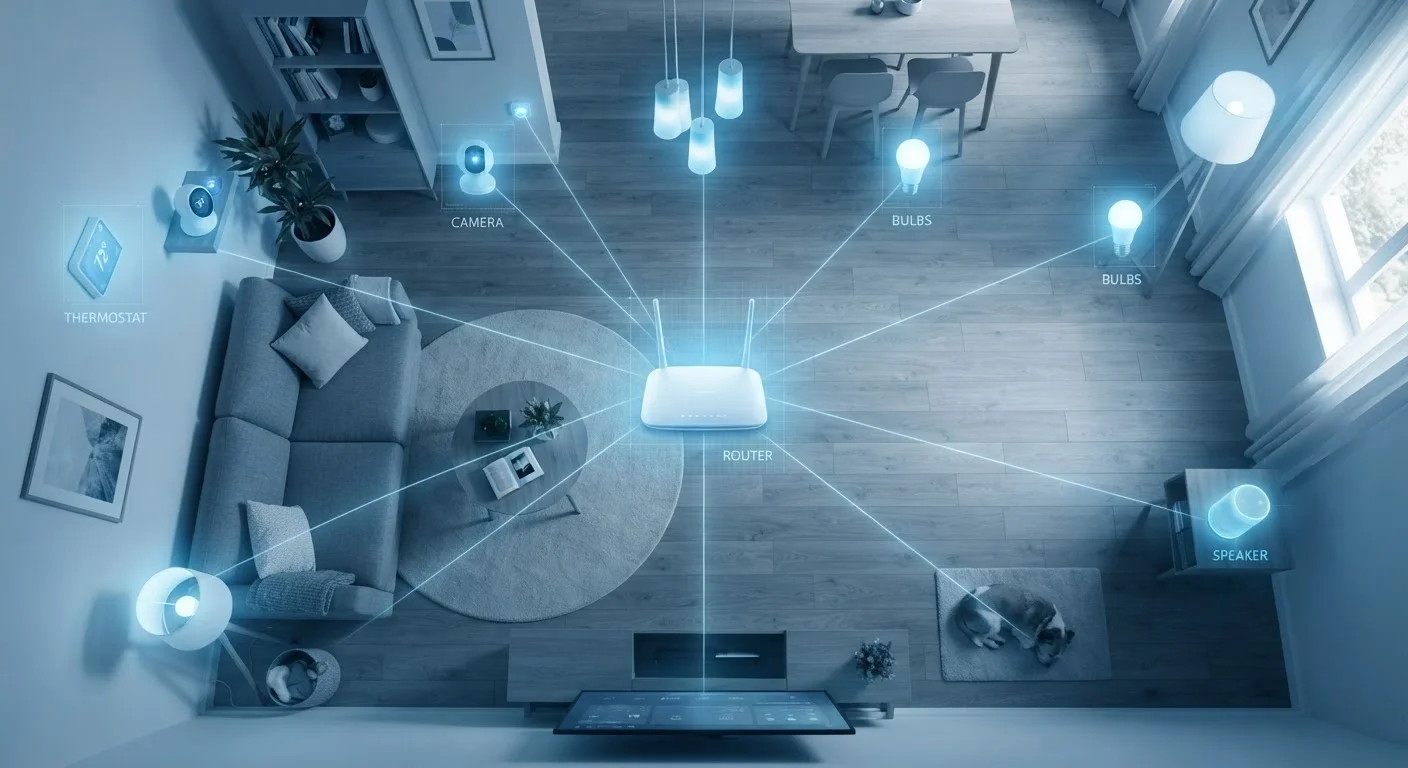
Why Smart Devices and Wi-Fi Clash More Than You'd Expect
Adding smart devices to your home is supposed to make life easier — but at a certain point, your Wi-Fi starts to feel the strain. Lights that won't respond, cameras that drop offline, thermostats that lag: these aren't always signs of a bad product. They're often signs of a network that's carrying more than it was designed to handle.
The problem isn't just bandwidth — how much data flows through the network. It's also about the number of simultaneous connections your router has to track and manage. A single smart bulb barely uses any data, but it still occupies a connection slot on your router. Multiply that across two dozen devices and the math starts working against you. For a broader look at how this fits into the smart home trade-off picture, see the real upsides and downsides of building a smart home.
Understanding the specific mistakes people make — and why they happen — puts you in a position to fix them without needing to call a technician.
The Most Common Smart Home Wi-Fi Mistakes
Connecting every smart device to the same 2.4 GHz Wi-Fi band.
Why it happens: The 2.4 GHz band has a longer range, so it's the default connection for most smart devices — making it easy to pile everything onto it without thinking twice.
Never updating the router's firmware after installation.
Why it happens: Routers are often treated as 'set it and forget it' appliances, and firmware update notifications are rarely obvious or automatic on older models.
Placing the router in a closet, cabinet, or corner of the house.
Why it happens: Routers are often tucked away to hide the cables, but walls, furniture, and distance all weaken Wi-Fi signals significantly.
Treating the smart home network like it has unlimited capacity.
Why it happens: It's easy to keep adding devices — another bulb, a doorbell camera, a plug — without realizing each one consumes a small portion of the router's connection-management capacity.
Skipping the creation of a separate IoT network for smart devices.
Why it happens: Setting up a secondary network feels technical and intimidating, so most people skip it and put everything on one shared network.
If your network issues extend beyond smart devices and your computer has also been sluggish, it may be worth checking our room-by-room guide to slow computer causes — network congestion can affect performance across every device in your home.
Simple Structural Changes That Make a Real Difference
Your Router Has a Real Device Limit
Every router has a maximum number of simultaneous connections it can reliably manage. Exceeding that threshold — even with devices that use minimal data — causes dropped connections, lag, and instability across your entire network. Check your router's documentation for its stated device limit before adding more smart gadgets.
Once you know the mistakes to avoid, a few structural changes to how your network is organized can dramatically improve smart home reliability. The most impactful step for most households is creating a dedicated segment of the network — often called a guest network or IoT network — just for smart devices. This keeps your phones and computers on a less crowded connection and reduces the chance that a misbehaving smart device disrupts everything else.
Router placement deserves more attention than it usually gets. A router sitting on the floor behind a couch is fighting physics. Signals radiate outward in all directions, so a central, elevated position means stronger reach throughout your home. For larger spaces, a mesh system — where multiple access points work together as a unified network — can eliminate dead zones entirely.
~25
Typical simultaneous device limit on a consumer router
Many standard consumer routers are optimized for roughly 25 connected devices before performance degrades noticeably, according to networking hardware documentation.
2.4 GHz
Band used by most smart home devices by default
The 2.4 GHz frequency band is preferred by most IoT devices for its range, but it supports fewer simultaneous channels than the 5 GHz band, making congestion more likely.
For related guidance on keeping your network safe as well as fast, protecting your home network without a technical background walks through the essentials in plain language. And if evening slowdowns are a recurring frustration, why Wi-Fi slows down at night explains what's actually happening and what can be done about it.
Before plugging in your next smart device, it's also worth understanding the privacy side of shared networks. What to know before connecting smart devices to a shared network covers what questions to ask before everything is online.
The content on this site is for informational purposes only and is not a substitute for professional advice. Always consult a qualified professional for guidance specific to your situation.