

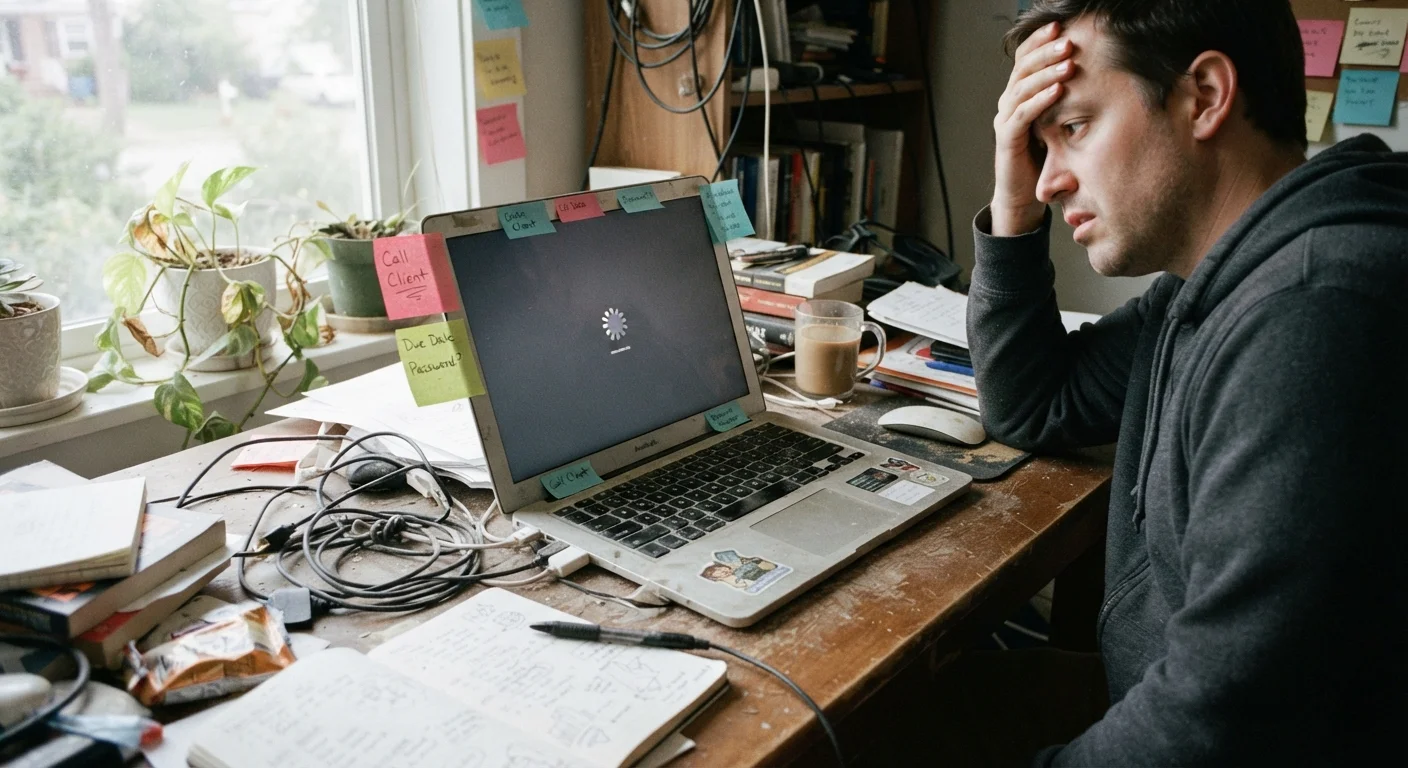
Why "Slow Computer" Is a Diagnostic Problem, Not a Simple Fix
"My computer is slow" is one of the most common tech complaints — and one of the hardest to answer without more context. Slowness is a symptom, not a cause. It can stem from a program hogging memory, a drive that's nearly full, a network bottleneck, background malware, or a machine running too hot to think straight.
This guide works through each possible source room by room, so you can check the most likely spots in order rather than guessing. Most fixes use tools already built into your operating system. If your computer is also freezing or crashing, see our guide to matching freeze symptoms to fixes for a related walkthrough.
“The vast majority of slow-computer complaints trace back to a handful of well-understood, fully reversible causes. The challenge is knowing where to look first.”
— Consumer Technology Support Research, Published review of common home computer support issues
The Startup Room: What Loads Before You Even Touch Anything
Every time your computer boots, a queue of programs starts running in the background. Some are necessary — security software, system drivers. Many are not: music apps, chat clients, software updaters, printer utilities. Each one consumes a slice of CPU and memory before you've opened a single window.
To review and trim this list:
- Windows: Press Ctrl + Shift + Esc to open Task Manager, then click the Startup tab. Right-click anything you don't need at boot and select Disable.
- macOS: Open System Settings → General → Login Items. Remove anything you don't intentionally want running at startup.
Disabling a startup item doesn't uninstall the program — it just stops it from launching automatically. You can still open it manually when you need it.
Before doing anything else, restart your computer fully — not just sleep or hibernate. A true restart clears cached data and often resolves intermittent slowness in minutes.
Sleep and hibernate preserve the current state in memory; a full restart flushes temporary files and resets background processes that can accumulate over days of use.
Check your Task Manager (Windows) or Activity Monitor (Mac) sorted by CPU usage first, then memory. The top offender is almost always visible within seconds.
Built-in monitoring tools reveal exactly which process is consuming resources, removing the guesswork that leads most people to unnecessary reinstalls or purchases.
The Memory Room: RAM and What Happens When It Runs Out
RAM (Random Access Memory) is your computer's short-term workspace. When it fills up, the system starts using part of your storage drive as a slow substitute — a process called virtual memory or paging. Storage is dramatically slower than RAM, so anything that triggers heavy paging will make the whole machine feel sluggish.
Signs you're hitting a RAM ceiling: multiple browser tabs cause slowdowns, switching between applications takes several seconds, or the system feels fine after a restart but degrades over hours of use.
Check current RAM usage:
- Windows: Task Manager → Performance tab → Memory. If usage regularly sits above 80%, RAM is a bottleneck.
- macOS: Activity Monitor → Memory tab. Watch the Memory Pressure graph — sustained yellow or red means the system is under strain.
If RAM is the confirmed culprit, closing unused browser tabs and background apps is the immediate fix. Upgrading RAM is a longer-term option, though many modern laptops have it soldered in and cannot be upgraded.
70%+
Storage capacity that triggers slowdowns
Most operating systems begin to slow noticeably when a hard drive or SSD exceeds roughly 70–80% of its total capacity, due to reduced space for temporary files and virtual memory.
~30 sec
Average startup time added by excess startup apps
Technology support communities frequently cite background startup programs as one of the top reported causes of slow boot times for everyday users.
The Storage Room: Hard Drives, Clutter, and Hidden Hogs
A drive that's nearly full slows the whole system — not just file operations. The operating system needs free space to write temporary files, manage virtual memory, and install updates. When that space disappears, everything waits.
Don't Delete System Files to Free Space
When clearing storage, only remove files you recognize — documents, downloads, photos you've backed up, and applications you no longer use. Deleting files inside Windows or macOS system folders can break the operating system. When in doubt, leave it alone.
To reclaim space without risk:
- Empty the Recycle Bin or Trash — files there still occupy drive space.
- Clear your Downloads folder, which accumulates silently over years.
- Use Windows Disk Cleanup (search for it in the Start menu) or macOS Storage Management (Apple menu → About This Mac → Storage → Manage) to identify large files and removable system caches.
- Uninstall applications you haven't opened in over a year.
On older machines with spinning hard drives (HDDs) rather than solid-state drives (SSDs), fragmentation can also slow reads. Windows includes a built-in Defragment and Optimize Drives tool for this. Do not defragment an SSD — it's unnecessary and causes extra wear.
Use Built-In Tools Before Downloading Anything
Windows has Disk Cleanup and the Startup tab in Task Manager. macOS has Storage Management and Login Items in System Settings. These free, built-in utilities handle the majority of common slowdowns without installing third-party software. Using unfamiliar cleanup apps from unknown sources can introduce more problems than they solve.
The Network Room: When the Internet Is the Real Bottleneck
Plenty of "slow computer" reports are actually slow internet in disguise. If your offline applications run fine but everything browser-based drags, the machine may be perfectly healthy.
Slowness Online vs. Slowness Everywhere
It helps to determine whether your computer is slow across all tasks or only when using the internet. If offline apps like a word processor or file explorer feel fast but web browsing and streaming lag, the issue is almost certainly your network rather than the computer itself. These require different fixes.
Quick network checks:
- Run a speed test at a site like Fast.com or Speedtest.net and compare results to your plan's advertised speeds.
- Test whether the issue affects all devices on the network or just one. If all devices are slow, the router or ISP is the source.
- Restart your router and modem by unplugging them for 30 seconds. This resolves a surprising number of slowdowns.
- Check router placement — walls, distance, and interference from other electronics all degrade Wi-Fi signal.
If speed fluctuates by time of day, see our explainer on evening Wi-Fi slowdowns for the underlying causes. For households with many connected devices, network congestion from smart home devices may also be a factor.
The Maintenance Room: Software Updates, Malware, and Heat
Three maintenance factors that often go unnoticed until they become serious:
Pending Updates
Operating system and driver updates include performance patches. A machine running months behind on updates may be missing fixes that directly affect speed. Allow automatic updates or check manually through Windows Update or macOS System Settings.
Malware
Malicious software running in the background consumes CPU and network resources without your knowledge. Run a scan using your operating system's built-in tool — Windows Security (formerly Windows Defender) on Windows, or a reputable scanner on macOS. If your browser has new toolbars you didn't install or your homepage changed without your input, treat those as red flags.
Overheating
Overheating Can Cause Permanent Damage
When a processor runs too hot, the computer automatically slows itself down to prevent damage — a process called thermal throttling. If your machine is hot to the touch, the fan is unusually loud, or it shuts down unexpectedly, address the heat source before continuing to use it heavily. Continued operation while overheating can shorten hardware lifespan significantly.
Dust buildup inside vents is the most common heat cause on desktop computers and older laptops. Use a can of compressed air to clear vents every six to twelve months. Make sure the computer sits on a hard, flat surface — using a laptop on a soft surface like a bed blocks airflow entirely.
These maintenance habits are also covered in our piece on everyday routines that quietly damage devices.
When to Stop Fixing and Start Replacing
Not every slow computer can be fully recovered. Hardware ages, and software demands grow faster than older machines can keep pace. A reasonable threshold: if the machine is more than seven to eight years old, if RAM cannot be upgraded and is under 4 GB, or if the hard drive shows failing health indicators in a diagnostic tool, further troubleshooting has diminishing returns.
Before making any hardware decisions, it's worth running through a structured checklist. Our pre-support checklist covers the steps worth completing before escalating to a technician or considering replacement.
If you do work through all sections above without improvement, a local repair shop can run hardware diagnostics — a failing drive or bad memory module can cause widespread slowness that software fixes won't resolve.
Windows Task Manager Guide
Microsoft's official documentation explains how to read CPU, memory, and startup program data in Task Manager — the fastest way to spot what's slowing a Windows PC.
macOS Activity Monitor Help
Apple's support documentation walks through using Activity Monitor to find resource-heavy apps and manage memory on a Mac without any third-party tools.
CrystalDiskInfo (Windows)
A free, widely used utility that reads the health status of a hard drive or SSD directly from its built-in diagnostics, helping identify failing storage before it causes data loss.
The content on this site is for informational purposes only and is not a substitute for professional advice. Always consult a qualified professional for guidance specific to your situation.