

Option A
Streaming Sticks
The portable, upgradeable add-on that runs its own software.
Best for: Anyone who wants a consistent, up-to-date streaming experience independent of their TV's built-in system.
Option B
Smart TV Apps
The built-in, no-extra-hardware option that's ready from day one.
Best for: Viewers who want simplicity and fewer remotes, and whose TV's software platform is current and well-supported.
What You're Actually Choosing Between
Every smart TV ships with a built-in operating system — a software platform that runs apps like Netflix, Hulu, Disney+, and YouTube directly on the television. You don't plug anything in; you just open the app from the home screen.
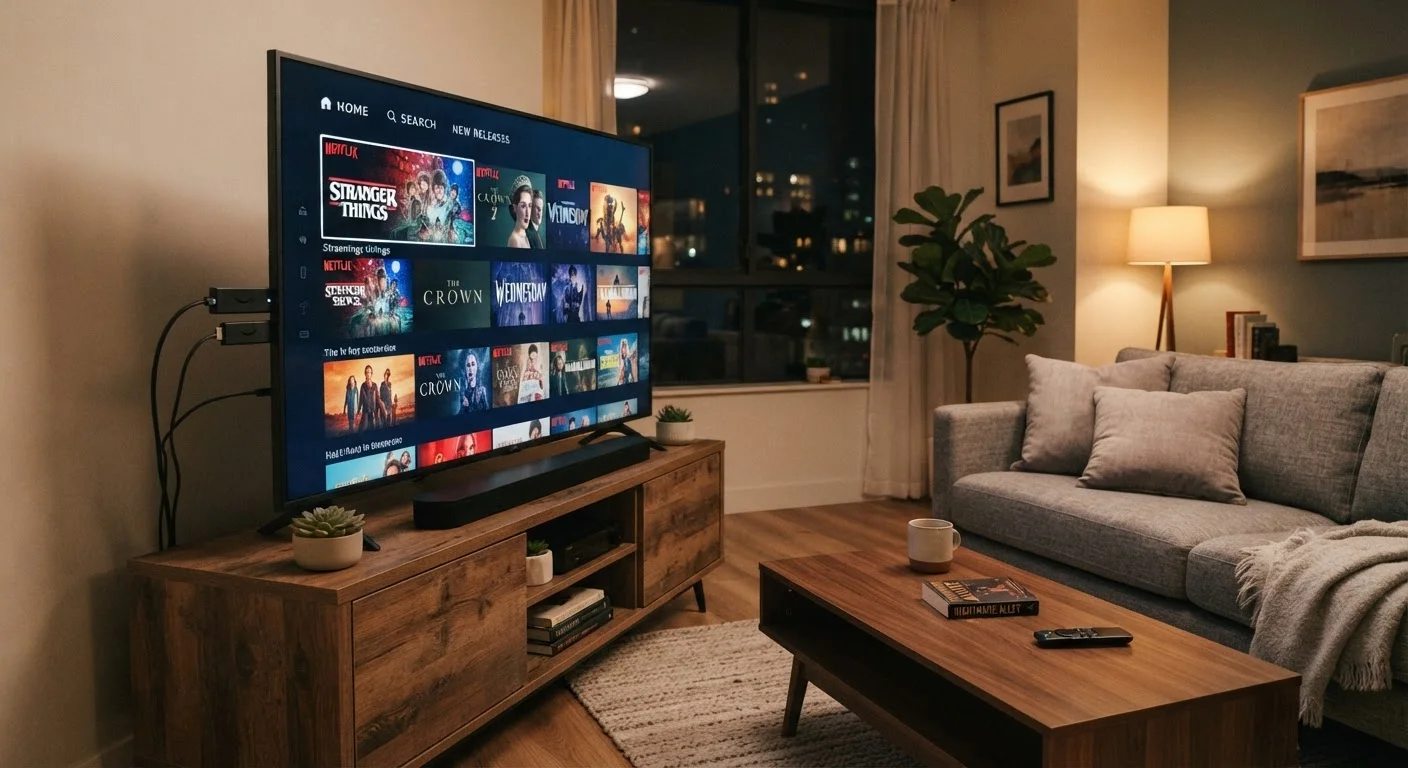
A streaming stick (sometimes called a streaming dongle or media player) is a separate device — typically the size of a USB thumb drive — that plugs into your TV's HDMI port. It runs its own operating system, connects to your Wi-Fi, and outputs video and audio through that HDMI connection. From the TV's perspective, it's just another input, like a game console or a Blu-ray player.
Both approaches get streaming video onto your screen. The difference lies in how they're maintained, how fast they run, and how much control you have over the experience. For a broader picture of all the ways content can reach your TV, see this full breakdown of TV content options.
Performance and Software Longevity
This is where the two approaches diverge most meaningfully. Smart TV software is tied to the hardware inside your television. Manufacturers typically support a TV's operating system for a few years after launch, then slow or stop updates. Apps may stop receiving new features, and some services may eventually drop support for older TV platforms entirely.
Streaming sticks operate on a separate upgrade cycle. When the software becomes outdated or the hardware feels slow, you replace the stick — a much smaller investment than replacing the entire TV. Manufacturers of dedicated streaming devices also tend to push updates more frequently, since that software is their core product.
Performance also differs noticeably on older hardware. A five-year-old smart TV may load apps slowly, struggle with 4K menus, or buffer more often than a current streaming stick would on the same network. If you've experienced sluggish menus or app crashes, buffering and performance issues may have a hardware component worth considering.
| Criterion | Streaming Sticks | Smart TV Apps |
|---|---|---|
| Extra hardware required | Yes — the stick itself | No — built into the TV |
| Software update frequency | Updated independently, often more frequently | Tied to manufacturer support cycle |
| Lifespan / replaceability | Replace the stick, not the TV | Limited by the TV's hardware life |
| Portability | Works on any HDMI screen | Fixed to the television |
| Performance on older displays | Modernises any HDMI TV | Degrades as TV hardware ages |
| Remote / interface complexity | Adds a second remote (or app) | Single remote for everything |
| Privacy control | Separates two data layers | Single OS collects data together |
Privacy, Security, and the Network Angle
Smart TVs collect data by default. Most use a technology called ACR (Automatic Content Recognition), which samples what's on your screen — including cable, streaming, and even game content — and sends that data to the manufacturer and advertising partners. This happens at the TV operating system level, separate from whatever app you're watching in.
A streaming stick adds its own data layer, but it does let you separate two systems that would otherwise be combined. You can adjust privacy settings on each independently, disable ACR on the TV side, and manage the streaming platform's settings on the device side.
Either way, these devices live on your home network alongside phones, laptops, and other smart devices. Understanding what that means for your household is worth a few minutes — this overview of smart device network considerations covers the key points in plain language.
ACR Can Usually Be Turned Off
Most smart TVs allow you to disable Automatic Content Recognition in the privacy or settings menu. The exact location varies by manufacturer, but it's typically found under 'Privacy,' 'Viewing Data,' or 'Advertising.' Turning it off won't affect your ability to use streaming apps — it only stops the TV from sampling your screen content. Check your TV's support documentation for the specific steps.
Which Setup Makes Sense for Your Situation
The honest answer is that neither option is universally better. A well-maintained, current smart TV platform from a manufacturer with a strong software track record can be entirely sufficient — and simpler. A streaming stick becomes genuinely useful when your TV's built-in software is aging, performing poorly, or missing apps you actually use.
One practical consideration: TV resolution and the streaming device's capabilities need to match. There's no point running a 4K stream through a device that only outputs 1080p, or vice versa. If you're unsure how resolution factors into your setup, this plain-language guide to TV resolution is a useful starting point.
If you're setting up a TV in a secondary room, a streaming stick is almost always the more flexible and cost-effective path. For a primary living room TV that's relatively new, start with the built-in apps — you can always add a stick later if the experience falls short.
~50%
US households with at least one streaming device
According to Leichtman Research Group data, roughly half of US TV households use a dedicated streaming device alongside or instead of smart TV built-in apps.
3–5 years
Typical smart TV software support window
Industry observers generally note that most TV manufacturers provide active app and OS updates for three to five years after a model's launch, after which support becomes less consistent.
The content on this site is for informational purposes only and is not a substitute for professional advice. Always consult a qualified professional for guidance specific to your situation.