

Why Phone Transfers Go Wrong (and How to Avoid It)
Most people run into trouble during a phone switch for one of three reasons: they skip the backup, they assume everything transfers automatically, or they wipe the old device too quickly. Understanding what actually moves — and what doesn't — helps you avoid unpleasant surprises.
What typically transfers automatically: contacts synced to your Apple ID or Google account, photos backed up to iCloud or Google Photos, and core app data for apps that use cloud storage.
What often requires manual action: app re-downloads (especially across platforms), two-factor authentication setups, downloaded offline content (like podcasts or playlists), and app-specific settings that aren't cloud-synced.
If you're new to managing phone settings or unfamiliar with how accounts work on your device, the guide for first-time smartphone owners provides helpful background on how apps, data, and accounts interact.
Back Up Before You Begin
Never skip backing up your old phone before starting any transfer. If something goes wrong mid-transfer — a crash, a dead battery, or a failed sync — your backup is the only way to recover your data. Both iPhone (iCloud or iTunes) and Android (Google account or manufacturer backup) offer free built-in backup options. Confirm the backup has completed successfully before moving on.
The steps below cover both same-platform transfers (iPhone to iPhone, Android to Android) and cross-platform switches (Android to iPhone and vice versa).
What You'll Need Before You Start
What you will need
iCloud (iPhone users)
Backs up and wirelessly transfers contacts, photos, app data, and settings to a new iPhone.
Google Account Backup (Android users)
Syncs contacts, app data, call history, and settings across Android devices automatically.
Move to iOS app (switching from Android to iPhone)
Apple's free app that transfers contacts, photos, messages, and accounts from Android during iPhone setup.
Google Drive (switching from iPhone to Android)
Backs up iPhone photos, contacts, and calendar data in a format Android can restore.
USB-C or Lightning cable with adapter
Enables a direct wired transfer between phones for faster local data copying on supported devices.
Check Your App Subscriptions First
Before switching, note which apps you pay for and how those subscriptions are managed. Subscriptions tied to your Apple ID or Google Play account usually follow you automatically, but subscriptions managed directly through an app's website may need to be re-linked manually on the new device.
Step-by-Step: Transferring Your Phone Data
Back up your old phone completely
On iPhone: Go to Settings → tap your name → iCloud → iCloud Backup → Back Up Now. Wait for it to finish. Alternatively, connect to a computer and back up through Finder (Mac) or iTunes (Windows).
On Android: Go to Settings → System → Backup → Back up now. Most Android phones back up to your Google account. Some manufacturers (Samsung, for example) offer their own backup system as well — use both if available.
Transfer data if you're staying on the same platform
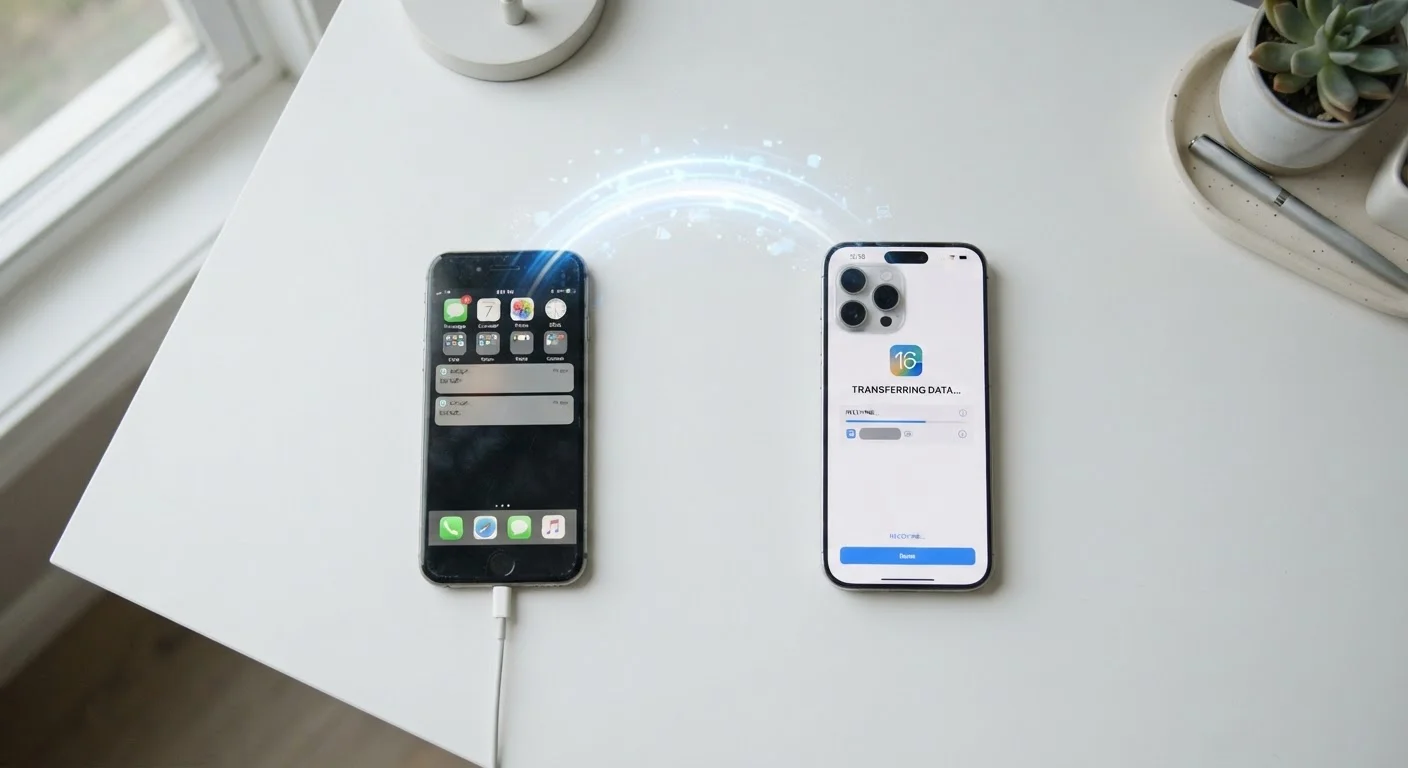
iPhone to iPhone: During new iPhone setup, choose Restore from iCloud Backup or use Quick Start — hold both phones near each other and follow the on-screen prompts. Quick Start transfers settings, apps, and data over Wi-Fi or a cable with minimal manual steps.
Android to Android: During setup, most Android phones prompt you to copy data from your old device. Connect both phones using a cable (or wirelessly), select what to transfer, and wait. Your Google account will also restore apps, contacts, and settings automatically.
Transfer data if you're switching between iOS and Android
Android to iPhone: Install the free Move to iOS app on your Android phone before starting iPhone setup. During setup, choose Move Data from Android, open the app, and follow the pairing instructions. It transfers contacts, photos, videos, web bookmarks, and some account data.
iPhone to Android: Install Google Drive on your iPhone. Back up your contacts and photos to Google Drive, then sign into the same Google account on your new Android phone. Your contacts and photos will sync down. For messages, third-party tools exist but results vary — this is the one data type that rarely transfers cleanly across platforms.
Restore and re-login to your apps
Most apps store your data in the cloud tied to your account credentials, not on the device itself. Open each important app on your new phone and sign in with the same username and password. Your history, preferences, and content should reappear automatically.
Prioritize: email, banking apps, messaging apps, and any app tied to two-factor authentication (2FA). For 2FA apps like authenticator apps, set up the new device before removing the old one — many require you to transfer codes manually or through a built-in migration feature.
Verify everything before wiping the old phone
On your new phone, check the following before doing anything permanent:
- Scroll through your contacts list and confirm key entries are present.
- Open your photo gallery and verify recent photos transferred.
- Sign into your top five most-used apps and confirm your data appears.
- Check that your text message history transferred (if applicable).
- Confirm calls, voicemail, and carrier service are active.
Once satisfied, you can safely factory reset the old device. See what to do before handing off your old phone for a full checklist if you're selling or giving it away.
Don't Wipe Your Old Phone Too Soon
Keep your old phone intact until you've confirmed everything transferred correctly on the new device. Check your contacts list, open your photo gallery, and log into your most-used apps before performing a factory reset. Rushing this step is the most common reason people lose data permanently.
After the Switch: What to Do Next
Once your new phone is set up and verified, a few finishing touches will ensure it stays running smoothly. Make sure your new device is enrolled in automatic backups right away — don't wait until you've accumulated more data. Check that software updates are configured to your preference; for background on what those updates actually change, see our article on what automatic updates actually do to your device.
Building good habits early also pays off. Routinely clearing out unused apps, managing your photo storage, and charging thoughtfully all extend the life and performance of your new phone. The practical guide to keeping your smartphone running well covers exactly those habits in detail.
Finally, if your old phone is going to someone else — through a trade-in, resale, or gift — don't hand it over without removing your personal data first. A factory reset alone isn't always sufficient; check the full pre-handoff checklist to make sure your information stays protected.
The content on this site is for informational purposes only and is not a substitute for professional advice. Always consult a qualified professional for guidance specific to your situation.