

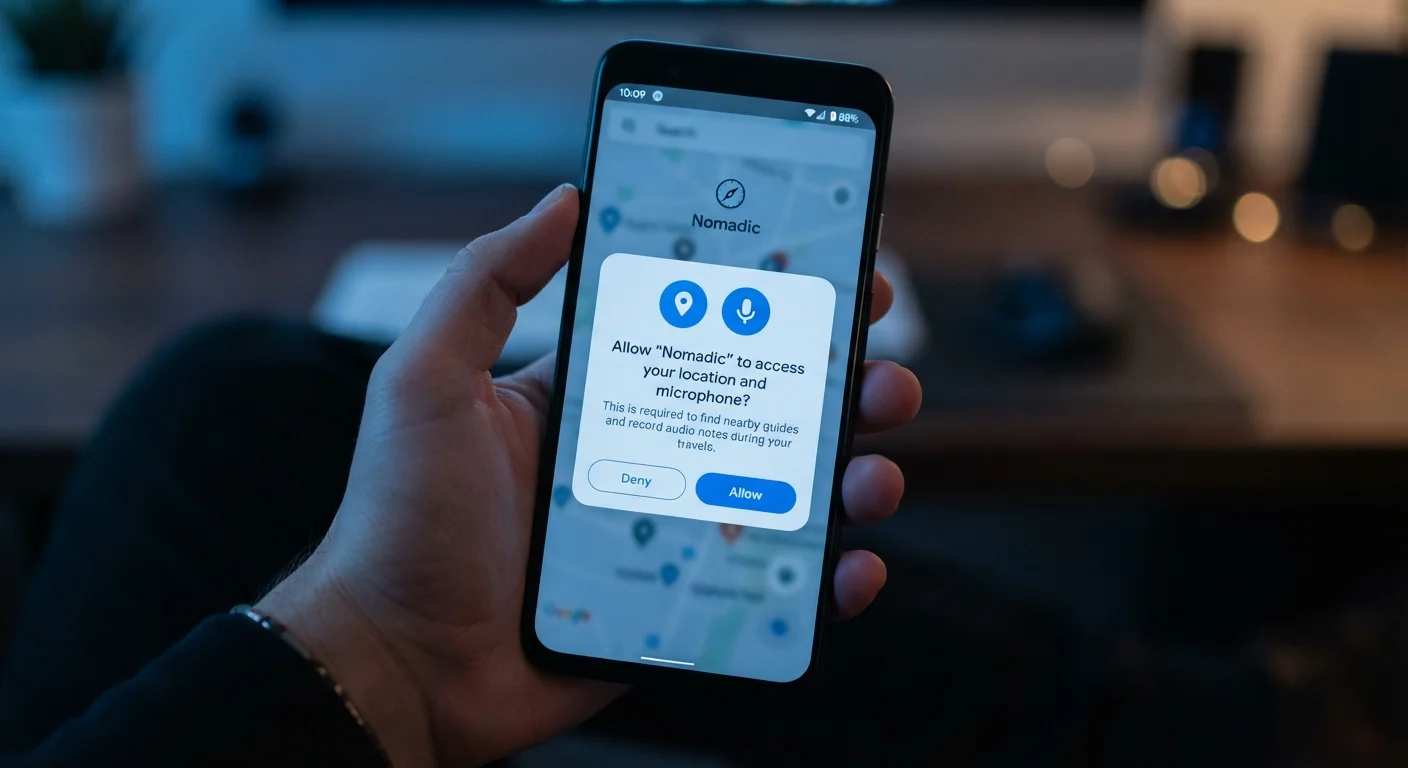
Why Permissions Exist — and What's Actually at Stake
Every app on your phone lives in a kind of digital sandbox. It can't just reach into your photos or flip on your microphone whenever it feels like it. Instead, it has to ask — and your phone's operating system puts that question to you as a permission dialog.
This system was designed to protect you. But because those prompts arrive at inconvenient moments (usually right when you're trying to use a new app), most people tap 'Allow' without a second thought. That habit is understandable, but it's worth pausing, because some permissions give an app surprisingly broad access to your personal data.
This is part of a broader privacy picture. For a full walkthrough of securing your phone, see this privacy and security guide covering everything from lock screens to app settings.
Permissions Are Not the Same as Data Collection
Granting a permission allows an app to access a feature — but what the app does with that data afterward is governed by its privacy policy, not your phone's permission system. Reading an app's privacy policy (or a plain-language summary) gives you a fuller picture of how your information is used and shared.
The Permissions You'll See Most Often — Explained
Here's a plain-language breakdown of the most common permission requests and what they actually mean:
- Location: Lets the app know where you are. Options typically include 'Always' (even in the background), 'While Using the App,' or 'Never.' Maps and delivery apps genuinely need this; many other apps request it for advertising purposes.
- Camera: Allows the app to activate your phone's camera. Necessary for photo-editing apps, QR scanners, and video chat. A budgeting app asking for camera access should raise a question.
- Microphone: Enables the app to record audio. Legitimate for voice messaging, video calls, or voice search — but not for most utility apps.
- Contacts: Grants access to your entire contact list, including names, numbers, and email addresses. Social and messaging apps often request this to help you find friends. Consider whether the trade-off is worth it.
- Photos / Media: Allows the app to view or modify your photo library. On newer iOS and Android versions, you can grant access to selected photos only rather than your entire library.
- Notifications: Lets the app send you alerts. This doesn't expose your data, but it affects your attention — be selective.
- Bluetooth: Used by apps that connect to wireless devices like headphones or fitness trackers. Some apps also use Bluetooth for proximity-based tracking.
Choose 'While Using' for Location Whenever Possible
Most apps that need your location only need it while you're actively using them. Selecting 'While Using the App' instead of 'Always' prevents background tracking and reduces how much location data is collected over time. You can change this setting for any app in your phone's Settings without affecting the app's core functions.
How to Review and Adjust Permissions Right Now
You don't have to live with the permissions you granted in a hurried moment. Both major mobile operating systems make it straightforward to audit and change them.
On iPhone (iOS)
- Open Settings and scroll down to find a specific app, or go to Privacy & Security to browse by permission type (e.g., see all apps with microphone access).
- Tap any permission to toggle it off or change from 'Always' to 'While Using.'
On Android
- Open Settings, tap Apps, then select the app you want to review.
- Tap Permissions to see what's been granted and make changes.
- Alternatively, go to Settings > Privacy > Permission Manager to view all apps using a specific permission type.
A useful habit: do a permissions audit every few months, especially after installing new apps. You may find apps you barely use still holding access to your location or contacts. For context on how app updates can change behavior over time, learn what automatic updates actually change on your device.
45%
Apps requesting location access
Research from app analysis firms has consistently found that roughly 45% of mobile apps request location data, often beyond what their core function requires.
6 in 10
Users who rarely review app permissions
Consumer surveys have found the majority of smartphone users seldom or never audit the permissions they've granted to installed apps.
3 types
Location access levels on modern phones
Both Android and iOS now offer three tiers — Always, While Using, and Never — giving users more granular control than earlier permission models allowed.
A Simple Framework for Deciding What to Allow
When a permission prompt appears, ask yourself three quick questions before tapping:
- Does this app need this to work? A flashlight app needs your camera flash — it does not need your location or contacts.
- What's the least access that still lets it function? Choose 'While Using' over 'Always' for location whenever possible. Grant access to specific photos rather than your full library when the option exists.
- Is there a version of this app that asks for less? Some apps have browser-based alternatives that require no permissions at all.
Declining a permission is not permanent. If you say 'Don't Allow' and later find you need that feature, you can grant access through Settings. The permission system is designed to be reversible. Also, keep in mind that Android and iOS handle permissions somewhat differently — see how the two operating systems compare in day-to-day use.
Frequently Asked Questions
In most cases, the app simply won't have access to that feature. A navigation app denied location access won't be able to find your position, but its other features may still work. Non-essential permissions — like a flashlight app wanting your contacts — can almost always be denied without any meaningful impact.
Yes. On iPhone, go to Settings > Privacy & Security to see permissions by category, or Settings > [App Name] to see that app's specific access. On Android, go to Settings > Apps > [App Name] > Permissions. You can turn access on or off at any time.
It depends on the app and the level of access. Choosing 'While Using the App' rather than 'Always' limits exposure significantly. Reserve 'Always' location access only for apps where background tracking genuinely benefits you, like navigation or fitness tracking.
Legitimate uses include voice search, video calling, voice memos, and in-app recording features. If an app has no obvious reason to use a microphone — say, a coupon app — it's worth questioning before granting access.
They can, if you've granted certain 'always on' permissions like background location. Limiting permissions to 'While Using the App' is a straightforward way to reduce background data collection.
On iPhone, go to Settings > Privacy & Security > Camera to see every app with camera access. On Android, go to Settings > Privacy > Permission Manager > Camera for the same overview.
The content on this site is for informational purposes only and is not a substitute for professional advice. Always consult a qualified professional for guidance specific to your situation.